.png)
How to Upload a Prescription Online | Wellscript Pharmacy
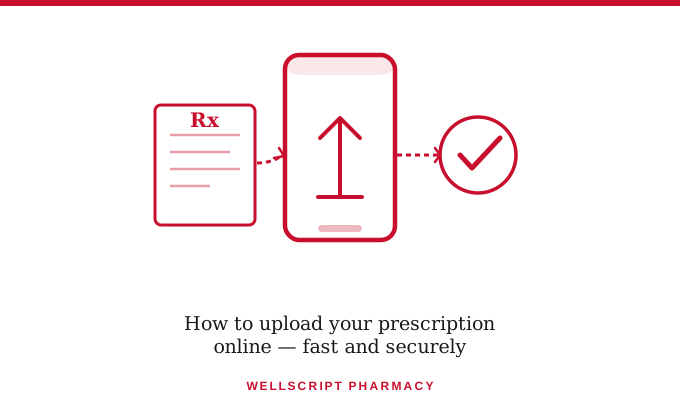
How to Upload a Prescription Online — A Step-by-Step Guide for New Wellscript Patients
By Wellscript Pharmacy | Bloomfield Township, MI
Welcome to Wellscript Pharmacy. If you've just signed up as a new patient and you're holding a paper prescription wondering what to do next, this guide is for you. We'll walk you through exactly how to upload your prescription, what happens after you do, how to track your delivery, and what to do if anything goes wrong along the way.
The whole process is simpler than it sounds. Most new patients have their first prescription submitted in under five minutes.
Before You Start — What You'll Need
You don't need to create an account or download an app. Everything happens through our website. Before you begin, have the following ready:
- Your prescription. This can be a paper prescription from your doctor, or a prescription bottle from your current pharmacy if you're transferring. If your doctor sent it electronically, you don't need to do anything — we'll receive it directly.
- Your insurance card. You'll need your plan name, member ID, and group number. This lets us verify your coverage and confirm your copay before we fill anything.
- Your delivery address. Make sure it's within our service area. You can check your zip code on our homepage if you're not sure.
- A phone number where we can reach you. We'll text you to schedule your delivery once your prescription is ready.
That's it. No medical records, no prior pharmacy history, no lengthy forms.
Step 1 — Take a Clear Photo of Your Prescription
If you have a paper prescription, the first thing to do is take a photo of it with your phone. Here are a few tips to make sure the photo comes through clearly enough for our pharmacists to read:
Good lighting matters. Lay the prescription flat on a table and photograph it in natural light or under a bright lamp. Avoid using your camera flash directly on the paper — it often creates glare that washes out the text.
Capture the whole document. Make sure all four corners of the prescription are visible in the frame. Crop out extra background clutter but don't cut off any part of the prescription itself.
Check the photo before uploading. Zoom in on the image and confirm you can read the medication name, dosage, prescriber name, and date. If you can't read it clearly on your phone screen, our pharmacists won't be able to either — retake it before uploading.
One photo per prescription. If you have multiple prescriptions to upload, take a separate photo for each one.
Step 2 — Go to Our Upload Page
On our website, click "Upload Prescription" in the main navigation or the homepage. This takes you directly to our secure prescription submission form.
The form will ask for:
- Your name and date of birth
- Your contact number and delivery address
- Your insurance information
- The prescription photo or file
All information is submitted through a 256-bit SSL encrypted connection and handled in full compliance with HIPAA. Your personal and medical information is never shared with third parties.
Step 3 — Upload Your Photo and Submit
Once you've filled in your details, tap the upload button and select the prescription photo from your camera roll or files. Accepted formats are JPG, PNG, and PDF.
If your doctor sent your prescription directly to us electronically — which many doctors now do — you can skip the photo entirely. Just fill in your personal and insurance details and note in the comments field that your doctor has already submitted the prescription. We'll match it to your profile when we receive it.
Once everything looks correct, hit submit. You'll receive an immediate confirmation on screen and a text message to the number you provided.
Step 4 — We Review and Verify Your Prescription
This is where our pharmacists take over. Here's what happens on our end after you submit:
Prescription review. One of our licensed Michigan pharmacists reviews your prescription to confirm it's valid, check the dosage, and screen for any potential interactions with other medications if you've listed them.
Insurance verification. We contact your insurance provider to confirm your coverage and calculate your exact copay. We will always tell you your copay before we fill and deliver — there are never any surprise charges.
Doctor coordination if needed. Occasionally a prescription needs clarification — an unclear dosage, an expired script, or a refill that requires a renewal from your doctor. If this happens, we'll contact you and your doctor directly and let you know what we need. You won't be left guessing.
This review process typically takes a few hours during business hours (Monday through Friday, 9:30 AM to 5:00 PM). If you submit outside of business hours, we'll process your prescription the following morning.
Step 5 — Scheduling Your Delivery
Once your prescription is filled and ready, we'll send you a text message to schedule your delivery. This is how it works:
You choose a time that works for you. We'll offer available delivery windows and you confirm the one that suits your schedule. Next-day delivery is always free. Same-day delivery is available in select metro Detroit zip codes — just mention it when we reach out and we'll let you know if it's available for your area.
Someone needs to be available to receive the delivery. This doesn't have to be you personally — a family member, partner, neighbor, or doorman can receive it on your behalf. We just need to hand it to a person rather than leave it unattended.
We'll confirm when we're on the way. You'll receive a heads-up text before our driver sets out so you're not caught off guard.
What If Something Goes Wrong?
Here are the most common issues new patients run into — and how to handle them:
"My photo was rejected because it was unclear." Retake the photo in better lighting and resubmit through the upload page. If you're having trouble getting a clear image, call us at (248) 792-7059 and we can walk you through it or arrange an alternative submission method.
"My prescription has no refills remaining." This is common with new prescriptions or ones that have lapsed. We'll contact your doctor on your behalf to request a renewal — just let us know when you submit and we'll take it from there.
"I'm not sure if my insurance was accepted." We'll always confirm this before filling. If there's a coverage issue, we'll call you to explain your options — including cash-pay pricing if needed.
"I haven't heard anything after submitting." If it's been more than one business day and you haven't received a text or call from us, reach out at (248) 792-7059 or email us at Contact@wellscriptpharmacy.com. Submissions occasionally get delayed — we'd rather you check in than wait unnecessarily.
Setting Up Auto-Refill While You're At It
Now that your first prescription is submitted, it's a great time to ask about auto-refill. Once enrolled, we track your refill schedule, reach out to your doctor when a renewal is needed, and deliver your next supply before you run out — without you having to think about it.
Just mention it when we confirm your delivery and we'll set it up at the same time.
Questions? We're Here.
Our pharmacists are available Monday through Friday, 9:30 AM to 5:00 PM. Call us at (248) 792-7059, fax us at (248) 792-7216, or email Contact@wellscriptpharmacy.com. We're a small local team and we actually pick up the phone.
Wellscript Pharmacy — delivering prescriptions across Bloomfield Hills, Troy, Royal Oak, Birmingham, Southfield, West Bloomfield, and 50+ metro Detroit zip codes.
📞 (248) 792-7059 | 📍 36400 Woodward Ave, STE 60, Bloomfield Township, MI 48304
Upload a Prescription · Become a New Patient · Transfer Prescriptions · Contact Us